 |
End Of Service Life (EOSL) Zebra will no longer provide services or support for DS378-DP, DS3578-ER, DS3578-SR, LS3578-FZ. This knowledge article is for your reference only and is no longer proactively updated. For more details, refer to Discontinued Scanners. If you are interested to upgrade your products, Contact Zebra.
|
Emulating a COM Port Over USB:
Note for Windows 11 Users:
- The Native CDC driver is also included with Windows 11.
Note for Windows 10 Users:
- Use the native CDC driver included in Windows 10 for Zebra scanners.
- Zebra CDC drivers are not required for Windows 10.
- The latest CDC driver version 2.15.3000 works on Windows XP but will prompt a warning due to lack of certification.
- If using Windows 10, skip the Zebra CDC driver installation and proceed to Step 3.
- For Windows XP, 7, or 8.1, download the CDC driver from the USB CDC Driver for Windows page.
Method to Emulate a COM Port:
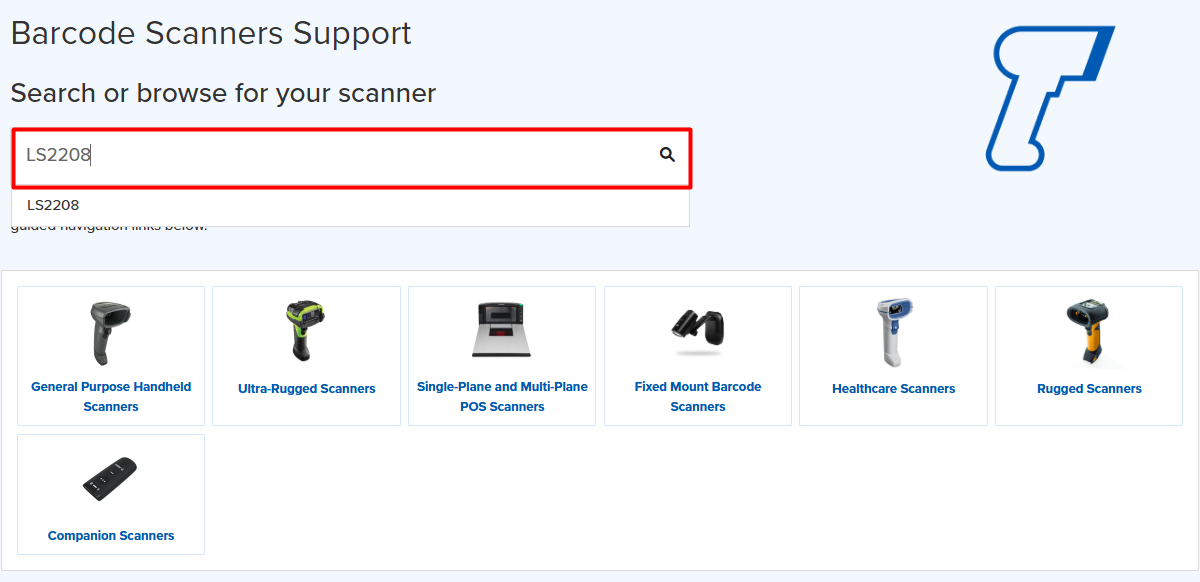
- Visit the support page, and search for your scanner model.
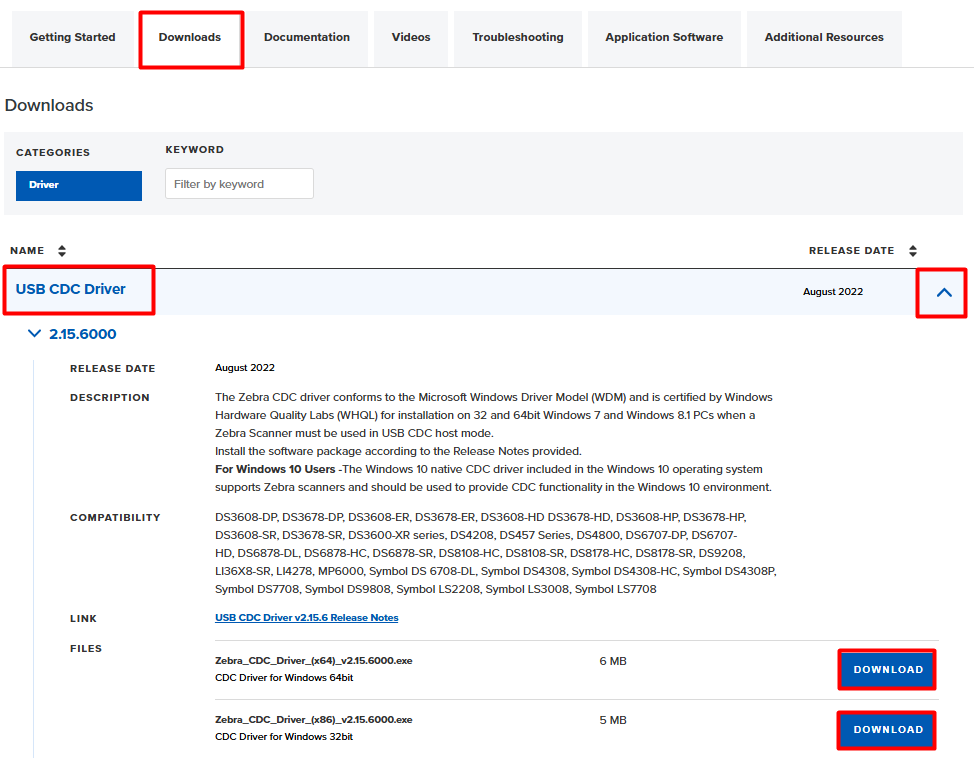
- On the support page, select Downloads > find the USB CDC driver > click the Arrow > Download.
Procedure:
- Install the downloaded file.
- Reboot the host.
- Scan the following barcode.
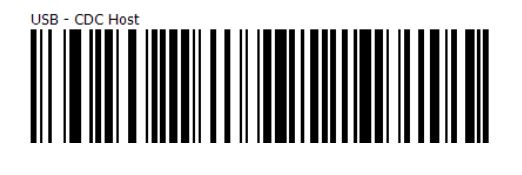
- Now, your scanner should appear in Device Manager with a COM port number.
Helpful Information: